Obtaining and Using System Fonts (ArkTS)
Overview
System fonts are built-in fonts of the operating system. They show text when no other font is chosen, maintaining clear and uniform text presentation.
System fonts can be enabled when an application does not register custom fonts or does not explicitly specify the text style. There are multiple system fonts. You can obtain the configuration information about system fonts and switch and use system fonts based on the font family name in the information.
Currently, system fonts cannot be disabled in ArkTS, but can be disabled in native code.
Available APIs
The following describes the common APIs and structs related to system fonts. The external APIs in ArkTS are provided by ArkUI. For details about the APIs, see @ohos.font.
| API | Description |
|---|---|
| getUIFontConfig() : UIFontConfig | Obtains the system font configuration. |
Obtaining System Font Information
-
Import the required module.
import { font } from '@kit.ArkUI' -
Obtain the system font information.
let fontConfig = font.getUIFontConfig(); -
Print the font information in logs after obtaining the system font information.
console.info('sysFontMfg::font-dir -----------' + String(fontConfig.fontDir.length));
for (let i = 0; i < fontConfig.fontDir.length; i++) {
  console.info(fontConfig.fontDir[i]);
}
console.info('sysFontMfg::generic-------------' + String(fontConfig.generic.length));
for (let i = 0; i < fontConfig.generic.length; i++) {
  console.info('sysFontMfg::family:' + fontConfig.generic[i].family);
  for (let j = 0; j < fontConfig.generic[i].alias.length; j++) {
    console.info(fontConfig.generic[i].alias[j].name + ' ' + fontConfig.generic[i].alias[j].weight);
  }
}
console.info('sysFontMfg::fallback------------' + String(fontConfig.fallbackGroups.length));
for (let i = 0; i < fontConfig.fallbackGroups.length; i++) {
  console.info('sysFontMfg::fontSetName:' + fontConfig.fallbackGroups[i].fontSetName);
  for (let j = 0; j < fontConfig.fallbackGroups[i].fallback.length; j++) {
    console.info('sysFontMfg::language:' + fontConfig.fallbackGroups[i].fallback[j].language + ' family:' +
      fontConfig.fallbackGroups[i].fallback[j].family);
  }
}
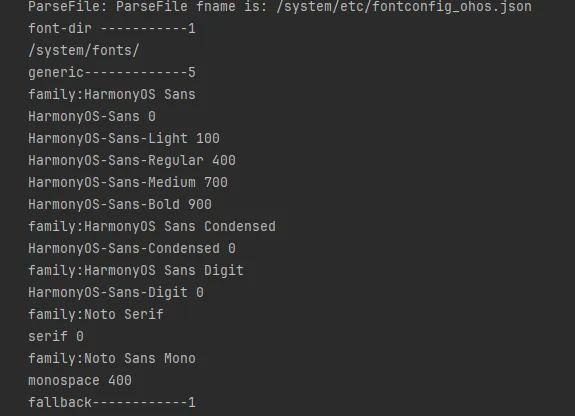
The following figure shows some system font configuration information of the application device system. The configuration information varies according to devices.
Using or Switching System Fonts
There are multiple system fonts. You can obtain the configuration information about system fonts and switch and use system fonts based on the font family name (fontFamilies in TextStyle).
If no font is specified, the default system font "HarmonyOS Sans" is used to display text.
-
Import the required module.
import { text } from '@kit.ArkGraphics2D'; -
Create TextStyle1 and set fontFamilies to HarmonyOS Sans SC, which is the default Chinese font.
let textStyle1: text.TextStyle = { color: { alpha: 255, red: 255, green: 0, blue: 0 }, fontSize: 100, fontFamilies: ['HarmonyOS Sans SC'] }; -
Create TextStyle2 and set fontFamilies to HarmonyOS Sans TC (to compare the difference in the same text typeface).
let textStyle2: text.TextStyle = { color: { alpha: 255, red: 255, green: 0, blue: 0 }, fontSize: 100, fontFamilies: ['HarmonyOS Sans TC'] }; -
Create a paragraph generator.
// Create a paragraph style object to set the typography style. let myParagraphStyle: text.ParagraphStyle = { textStyle: textStyle1, align: 3, wordBreak: text.WordBreak.NORMAL }; // Obtain the global font set instance. let fontCollection = text.FontCollection.getGlobalInstance(); // Obtain the ArkUI global FC. // Create a paragraph generator. let ParagraphGraphBuilder = new text.ParagraphBuilder(myParagraphStyle, fontCollection); -
Add textStyle1 and textStyle2 to the paragraph style and add the text.
let str:string = 'Module description\n'; // Add the first text style and the corresponding text content. ParagraphGraphBuilder.pushStyle(textStyle1); ParagraphGraphBuilder.addText(str); // Add the second text style and the corresponding text content. ParagraphGraphBuilder.pushStyle(textStyle2); ParagraphGraphBuilder.addText(str); -
Generate a paragraph for future drawing.
let paragraph = ParagraphGraphBuilder.build();
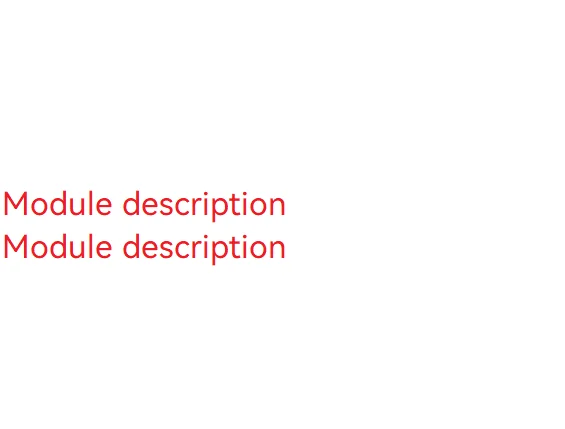
The following figure shows the effect.
你可能感兴趣的鸿蒙文章
openharmony 鸿蒙 geometric-shape-drawing-arkts
openharmony 鸿蒙 native-fence-guidelines
openharmony 鸿蒙 native-vsync-guidelines
openharmony 鸿蒙 displaysync-overview